DKA Consult - Login Tutorial
Overview
This tutorial will guide you through the process of logging into the DKA Consult WordPress admin dashboard.
Step 1: Access the Login Page
- Open your web browser (Chrome, Firefox, Safari, or Edge)
- Navigate to: https://dkaconsult.com/login
- You will see the DKA Consult login page
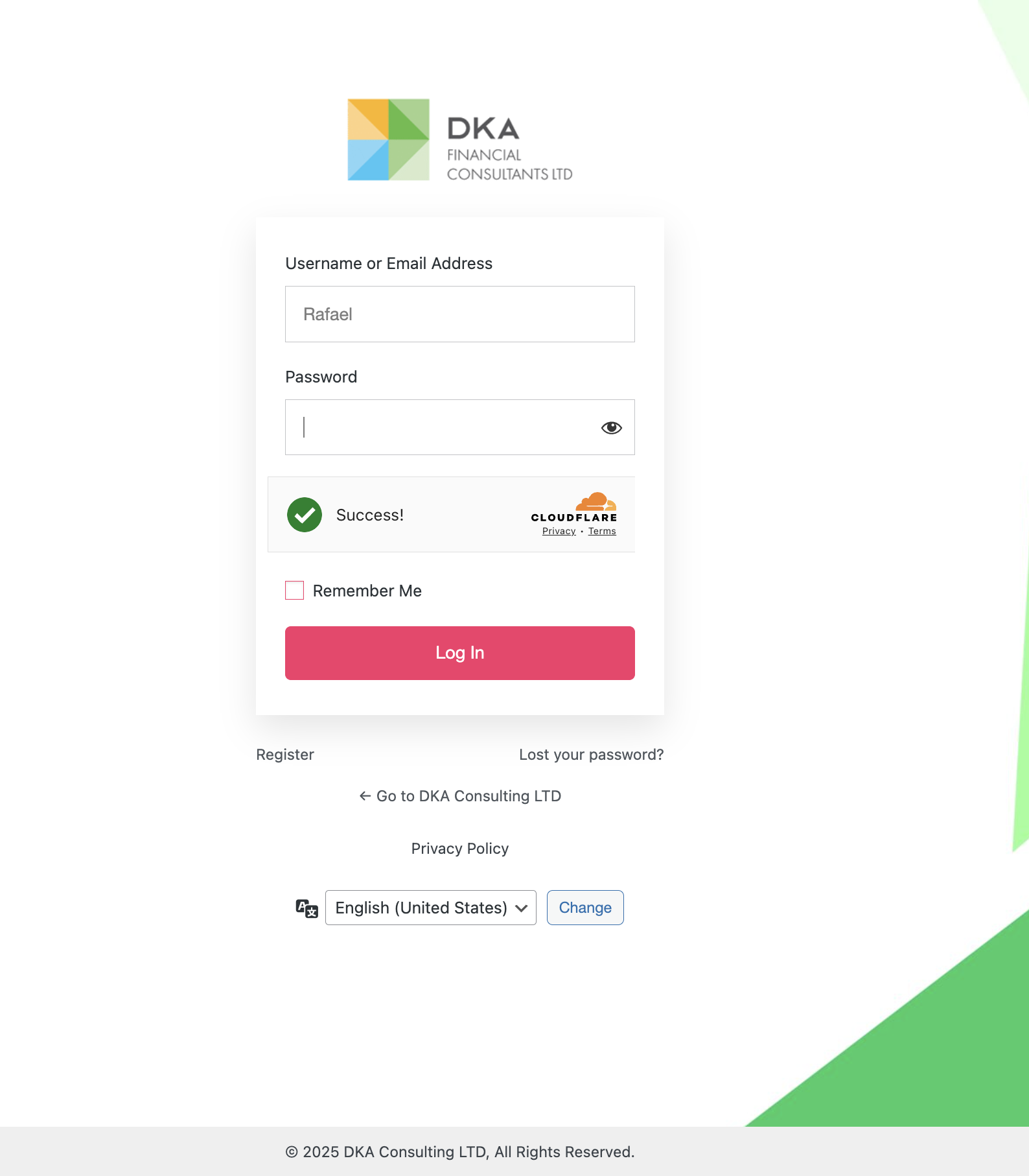
Step 2: Enter Your Credentials
- Username or Email: Enter your assigned username or email address in the first field
- Password: Enter your password in the second field
- Remember Me (Optional): Check this box if you want the system to remember your login on this device
Step 3: Login
- Click the "Log In" button
- If your credentials are correct, you will be redirected to the WordPress admin dashboard at https://dkaconsult.com/wp-admin
Troubleshooting
Forgot Password?
- Click the "Lost your password?" link below the login button
- Enter your email address
- Check your email for password reset instructions
Login Issues?
- Ensure your username/email is spelled correctly
- Check that Caps Lock is not enabled
- Clear your browser cache and cookies
- Contact your administrator if problems persist
Security Tips
✅ DO: - Use a strong, unique password - Log out when finished, especially on shared computers - Keep your login credentials confidential
❌ DON'T: - Share your password with others - Use the same password across multiple sites - Leave your account logged in on public computers
Next Steps: Once logged in, proceed to the relevant tutorial for the task you want to perform (Posts Management, Calendar Booking, or Certificate Creation).